Git
Git keeps the history of your project. Each time you reach a step that works, you record a commit: a snapshot of your files, with a message that says what you did. You can then look at each step again, go back, or try an idea on a branch without breaking what works.
CapyCode does all this with real Git, in your browser, in two ways: the Source Control panel to click, the terminal to type commands. Both act on the same repository: what you do on one side shows up immediately on the other.
Enable Git
By default, to keep the interface simple for beginners, Git is provided as a built-in extension to install. To use it, open the Extensions panel (blocks icon in the activity bar, or Ctrl+Shift+X) and click Install. The Source Control button appears immediately in the activity bar. In some activities (on Capytale, for example), the teacher may also disable Git.
Vocabulary
| Word | Meaning |
|---|---|
| Repository | The hidden .git folder that holds the whole history of the project |
| Commit | A recorded version of the project, with its message, its author and its date |
Stage (git add) | Choose the changes that will go into the next commit |
| Branch | A line of development; main is the main branch |
Merge (git merge) | Bring the work of another branch into the current branch |
| Conflict | Two branches changed the same lines: it is up to you to choose |
The Source Control panel
Once the extension is enabled, click the branches icon in the activity bar. The starter project already has a repository; otherwise, the panel offers to create one (git init).
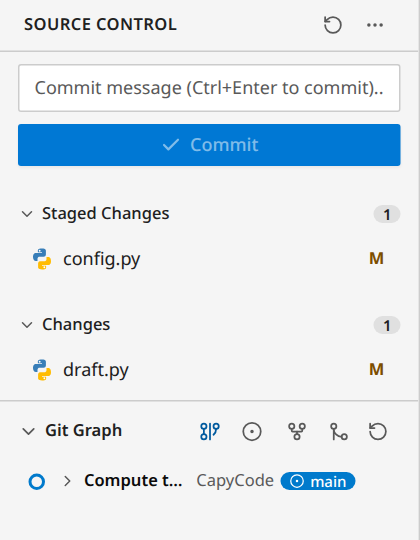
The files changed since the last commit are sorted into two lists:
- Changes: what you changed, not staged yet;
- Staged Changes: what will go into the next commit.
When you hover over a file, buttons let you stage (+) or unstage (−) it, open the file, or discard its changes (after confirmation, the file goes back to its version of the last commit). The same buttons, next to the title of each list, act on all the files. A click on the file name opens the comparison of its changes.
Making a commit
- Stage the files to record.
- Write a short message that says what you did ("Compute the average", "Fix the division by zero").
- Click Commit (or
Ctrl+Enterin the message field).
The commit appears in the history, below the lists. Its author and e-mail are CapyCode's (CapyCode <student@capycode.local>).
Seeing the differences
The comparison shows the old version and the new one: removed lines in red, added lines in green. Two layouts: Inline or Side by side. The buttons of the comparison stage or unstage the file, or open it in the editor.
You open a comparison from the panel (click on a changed file) or from the graph (click on a file of a commit).
The Git graph
Git Graph, in the status bar (or the Git: Git Graph command of the palette), opens the full history in a tab: each dot is a commit, each color a branch.
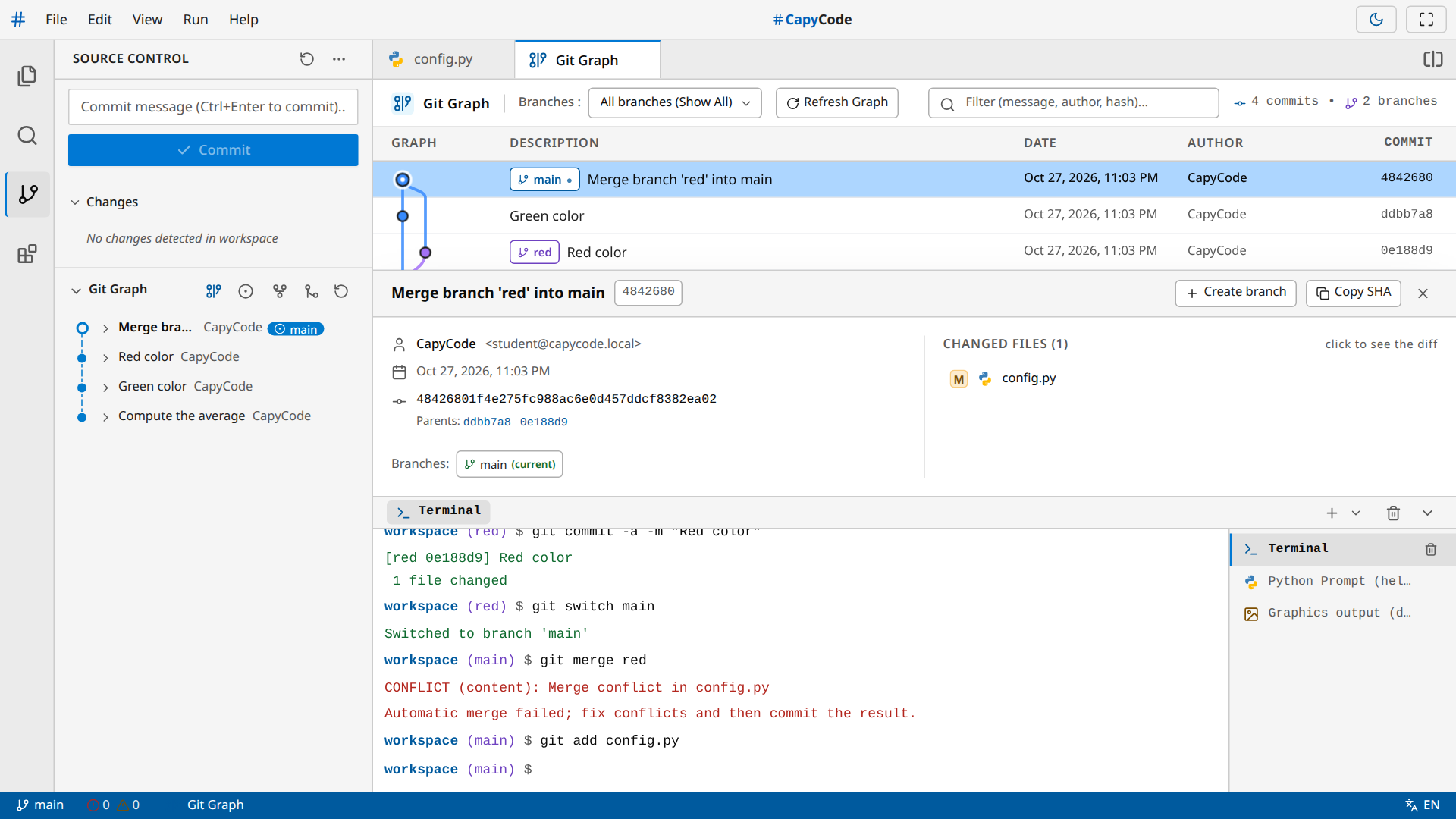
- The Filter field looks for a commit by its message, its author or its identifier; the Branches list shows only one of them.
- A click on a commit shows its details: author, date, full identifier (Copy SHA button), parents, branches, and the list of changed files. A click on a file opens its changes in this commit.
- Create branch creates a branch that starts from this commit.
Branches
The current branch is shown in the status bar and in the terminal prompt. A click on its name, in the status bar, opens the branch menu: switch to another one, or create a branch. The Git panel and the palette (Git: Switch to branch…, Git: Create Branch...) offer the same actions.
Switching to a branch replaces the files of the project with those of that branch: open files are updated. Commit your work before you change branches.
Merging
To bring the work of a branch into the current branch: the Merge into main menu of the Git panel (below the history), or the palette (Git: Merge "idea" into "main"), or git merge idea in the terminal. Your work must be committed first.
- If the current branch has not moved, the merge is a fast-forward: it simply moves up to the last commit of the other branch.
- Otherwise, Git creates a merge commit, which has two parents.
- If both branches changed the same lines, there is a conflict.
Resolving a conflict
Git does not choose for you: it writes both versions into the file, between markers.
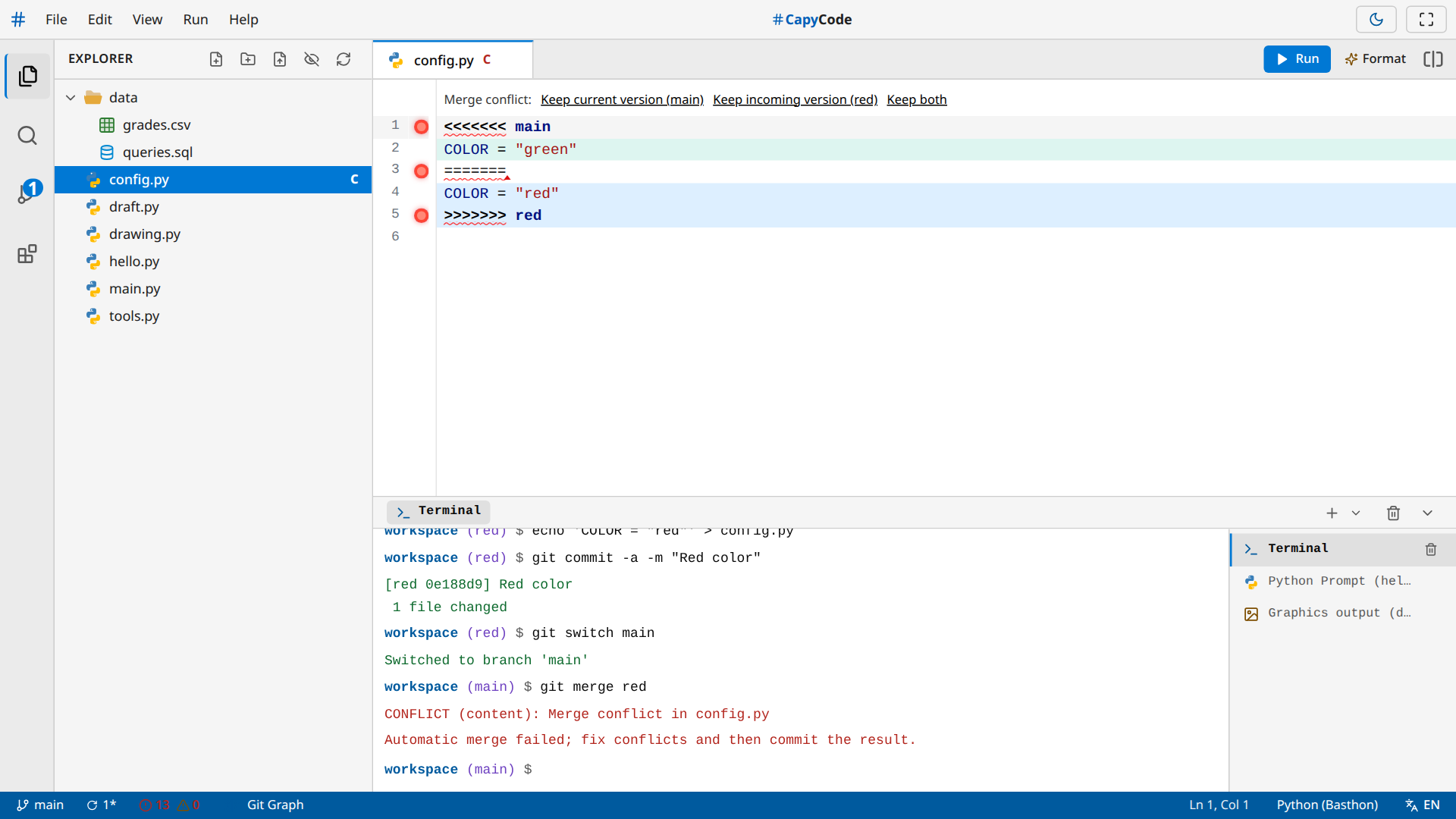
- Between
<<<<<<<and=======: the current version, the one of your branch (in green). - Between
=======and>>>>>>>: the incoming version, the one of the merged branch (in blue).
Above each block, choose Keep current version, Keep incoming version or Keep both. You can also fix the text yourself and remove the markers. With the keyboard, these choices are palette commands ("Conflict: keep the current version"…, "Conflict: go to the next one"). A choice is undone with Ctrl+Z.
During the merge, the top of the Git panel lists the files that still have conflicts (a click opens them):
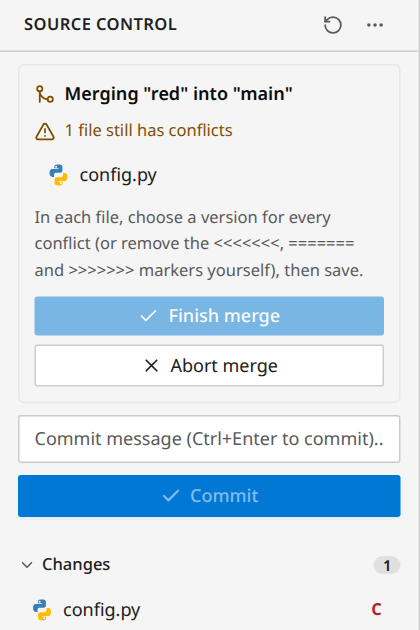
- Resolve all the blocks of each file, then save (
Ctrl+S). - Click Finish merge: CapyCode creates the merge commit.
Abort merge puts the files back the way they were before the merge. In the terminal: git add file then git commit (or git merge --continue) to finish, git merge --abort to abort.
Git in the terminal
| Command | Effect |
|---|---|
git init | Creates an empty repository |
git status, git status -s | State of the files |
git add file, git add . | Stages a file, everything |
git restore file | Discards the changes of a file |
git restore --staged file, git reset | Unstages |
git commit -m "message", git commit -a -m "…" | Makes a commit (-a: stages the modified files first) |
git log, git log --oneline -n 5 | History |
git show, git show <commit> | A commit and its changes |
git diff, git diff --staged | Unstaged, staged changes |
git branch, git branch name, -d, -m | Lists, creates, deletes, renames branches |
git switch name, git switch -c name | Switches to a branch (-c: creates it) |
git checkout name, git checkout -b name, git checkout -- file | Older syntax of switch and restore |
git merge name, --continue, --abort | Merges, finishes, aborts |
git tag, git tag name, git tag -d name | Tags |
git --help shows this list. The messages follow those of real Git.
No remote repository
CapyCode has no push, pull or clone: the repository stays in your browser. To pass it on with its whole history, export the project as a ZIP or share it with a link that includes the history (see Saving and sharing).