Getting started
CapyCode is a code editor for learning to program. It looks like VS Code, the editor developers use, but everything happens in your browser: nothing to install, and your code is never sent to a server.
You can write and run Python programs, SQL queries and OCaml code, organize your files, use a terminal and keep track of the versions of your work with Git.
The screen
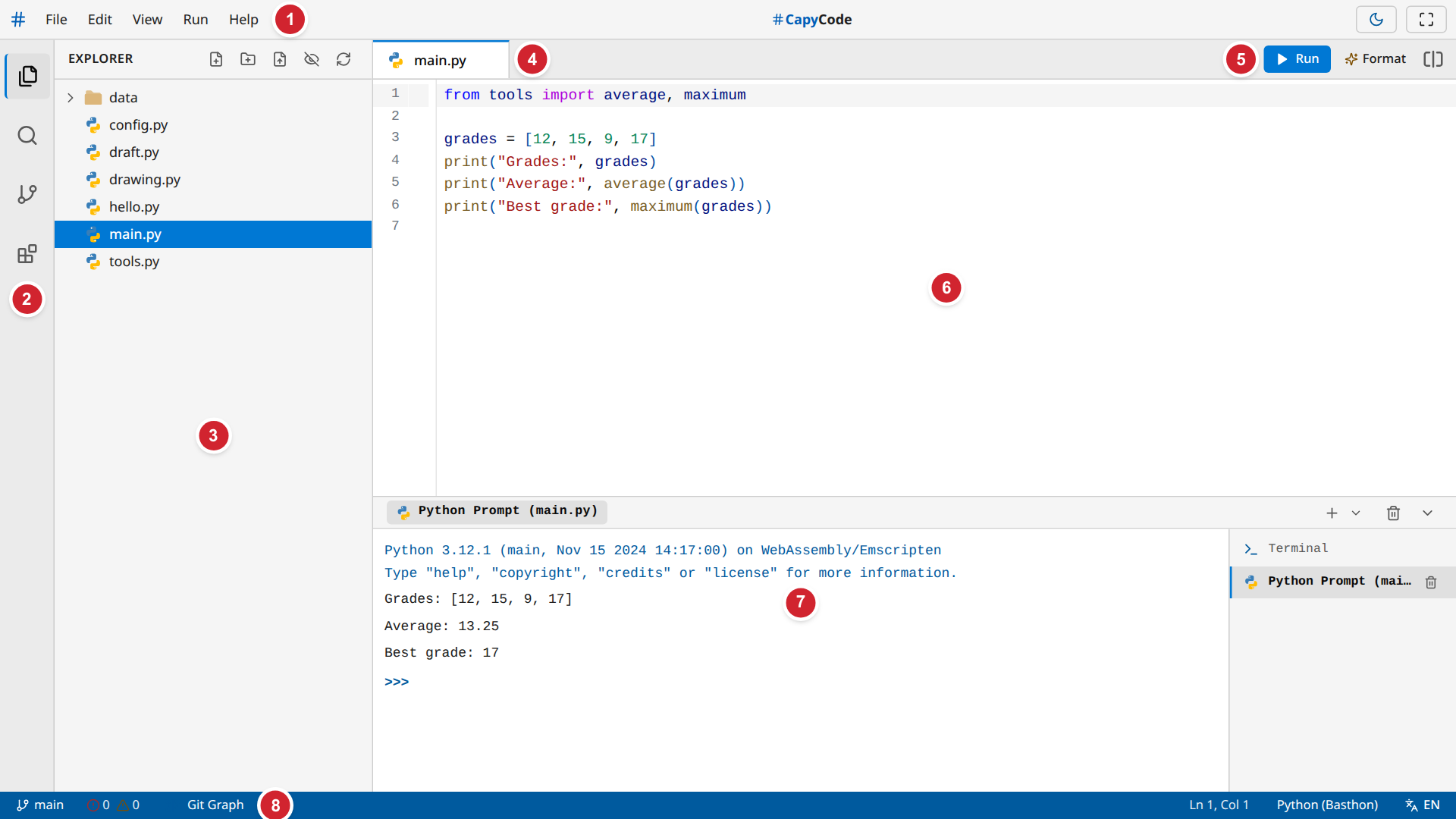
| Area | What it is for | |
|---|---|---|
| 1 | Menu bar | File, Edit, View, Run, Help: every action in CapyCode |
| 2 | Activity bar | Chooses what the side panel shows: Explorer, Search, Outline, Extensions (and Source Control once enabled) |
| 3 | Side panel | Here the explorer: the files and folders of your project |
| 4 | Tabs | One tab per open file; a dot means unsaved changes |
| 5 | Run and Format | Runs the file on screen; tidies up its code |
| 6 | Editor | Where you write your code |
| 7 | Bottom panel | The consoles: program output, terminal, drawings |
| 8 | Status bar | Git branch, errors and warnings, cursor position, language, interface language |
Your first program
On your first visit, CapyCode creates a small project with a main.py file.
- Click
main.pyin the explorer: it opens in the editor. - Change the code, for example
print("Hello!"). - Click ▶ Run (or press
Ctrl+Enter).
The output appears in the bottom panel. The file is saved automatically before it runs.
Saving
CapyCode does not save on its own while you type: Ctrl+S saves the file on screen. A dot ● on a tab means the file has changes that are not saved yet. Running a program saves its file first.
Where is my work?
Your project is kept in this browser, on this computer. It is still there when you come back to the page, even after closing it. However:
- it is not on other computers or in other browsers;
- clearing the site data in the browser, or using a private browsing window, makes it disappear.
To take your work with you or hand it in, export it as a ZIP or share it with a link: see Saving and sharing.
Going further
| I want to… | Page |
|---|---|
| Create, organize, rename files | Files and folders |
| Write faster, search, fix my mistakes | Writing code |
| Understand what happens when I run my code | Running a program |
| Type commands | The terminal |
| Keep the history of my versions | Git |
| Enable Git, SQL, OCaml or code formatting | Extensions |
| Hand in my work, pick it up elsewhere | Saving and sharing |
| Change the colors, the language, the font | Customizing the display |
| Do everything with the keyboard | Keyboard and accessibility |
| Prepare an activity for my class | For teachers |
| Find the answer to a problem | FAQ |