Saving and sharing
Your project lives in your browser: it stays there from one visit to the next, without an account or a server. To keep it elsewhere, hand it in or pass it on, there are two formats: the ZIP archive, a full copy, and the share link, handy for code.
| ZIP archive | Share link | |
|---|---|---|
| Content | Everything: files, images, full Git history | The text files, and if you choose, part of the Git history |
| Form | A capycode-project.zip file to download | An address to paste in a message, a learning platform, a QR code |
| Use | Backup, handing in homework, large project | Sharing an exercise or a solution in one click |
Exporting the project (ZIP)
File › Export (ZIP) downloads capycode-project.zip. The archive holds all the files of the project, hidden files and the .git folder included: opened again in CapyCode, the project gets back its whole history. It is also an ordinary ZIP, which any computer can open.
Importing a project (ZIP)
File › Import (ZIP), or drop a .zip file on the CapyCode window.
Importing replaces the project
The current project is completely erased (files and history) before the import. CapyCode asks for confirmation; export your work first if you want to keep it.
- If the archive holds a single folder that contains everything (which happens when you compress a folder), CapyCode opens it directly.
- Files added by operating systems (
__MACOSX,.DS_Store,Thumbs.db) are ignored. - An unreadable or empty archive is refused, and your project stays intact.
To add a few files without erasing anything, use the file import of the explorer instead.
Sharing with a link
File › Share... opens the share window.
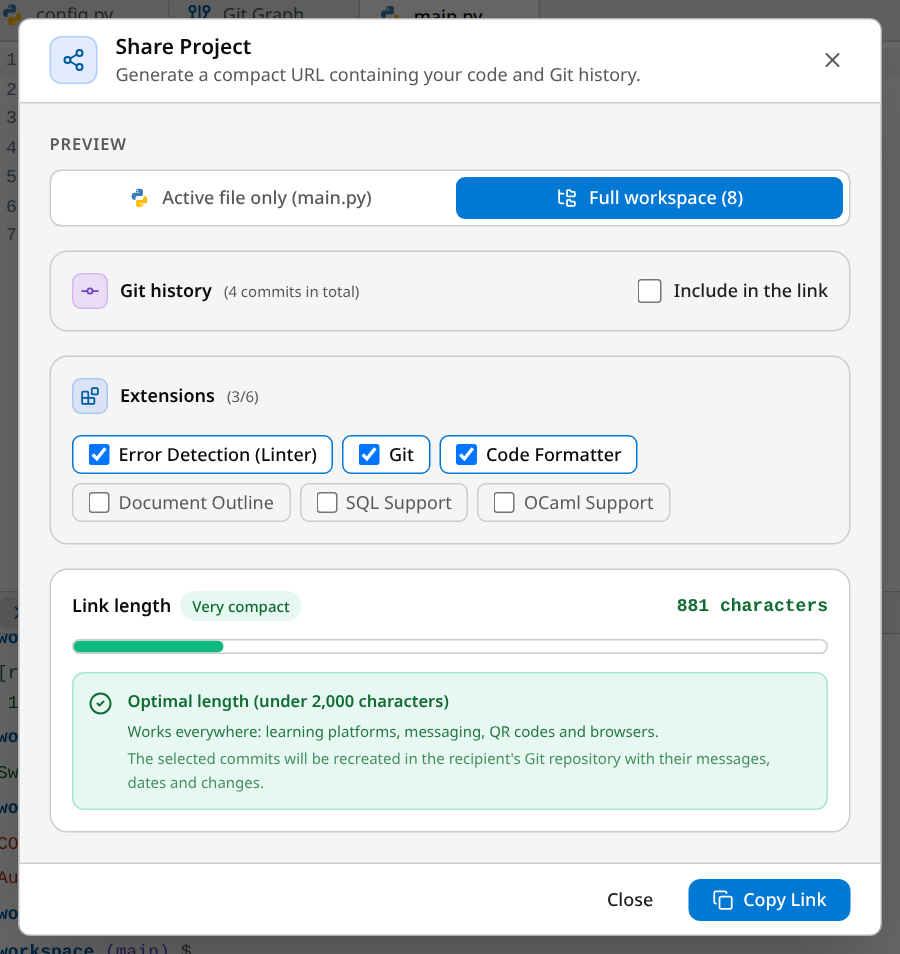
- Choose what the link contains: the Active file only, or the Full workspace.
- If the project has a Git history, tick Include in the link to add the latest commits: choose how many, and whether the other branches come too. For whoever opens the link, these commits are recreated with their messages, their dates and their changes.
- If extensions are enabled (Git, SQL, OCaml...), tick the ones to include in the link: they will be automatically enabled for the recipient.
- Watch the link length: "Very compact", it works everywhere; "Good compatibility", it suits all recent browsers; "Large", some messaging tools may cut it. Then include fewer commits, or use the ZIP.
- Copy Link, then paste it wherever you want.
The whole project is in the link itself, compressed: nothing is sent to a server, and the link works as long as you keep it.
Images do not travel in a link
A link only carries text. Images and other binary files are left out, and the share window lists them. To pass them on, use the ZIP export.
Opening a share link
Opening the link shows CapyCode with the shared project. As with an import, it replaces your current project: CapyCode asks for confirmation, unless your project is still the untouched starter project. An incomplete link (cut by a messaging tool) or one from an incompatible version of CapyCode is refused with a message.
Starting over
File › New Project erases all the files and the history, after confirmation. The new project is empty, without a Git repository: create one from the Git panel or with git init if you need it.
Installing CapyCode and working offline
Help › Install App installs CapyCode as an application, on a computer, tablet or phone: an icon on the desktop or home screen, full screen, without the browser bar. The window explains the steps for each device (on iPad and iPhone: Share, then "Add to Home Screen").
Once loaded, CapyCode works without a connection to edit, use the terminal and Git, and manage your projects. Running code needs the Internet to download the interpreter and the libraries.
Updates
When a new version of CapyCode is published, a message offers to reload the page. Save your files first: your project itself is kept.
What is kept, and where
| Data | Where | Disappears when… |
|---|---|---|
| Files and Git history of the project | This browser, on this device | New project, ZIP import, opening a link, clearing the site data |
| Preferences (theme, language, font, panel sizes) | This browser | Clearing the site data |
| Unsaved changes (● tabs) | The open page | Closing or reloading the page |
A project exists in only one browser. To move from one computer to another (from the classroom to home), export the ZIP or share a link, then open it on the other device.