The terminal
The terminal is in the bottom panel. You type commands there instead of clicking: this is how developers work, and a skill to learn step by step.
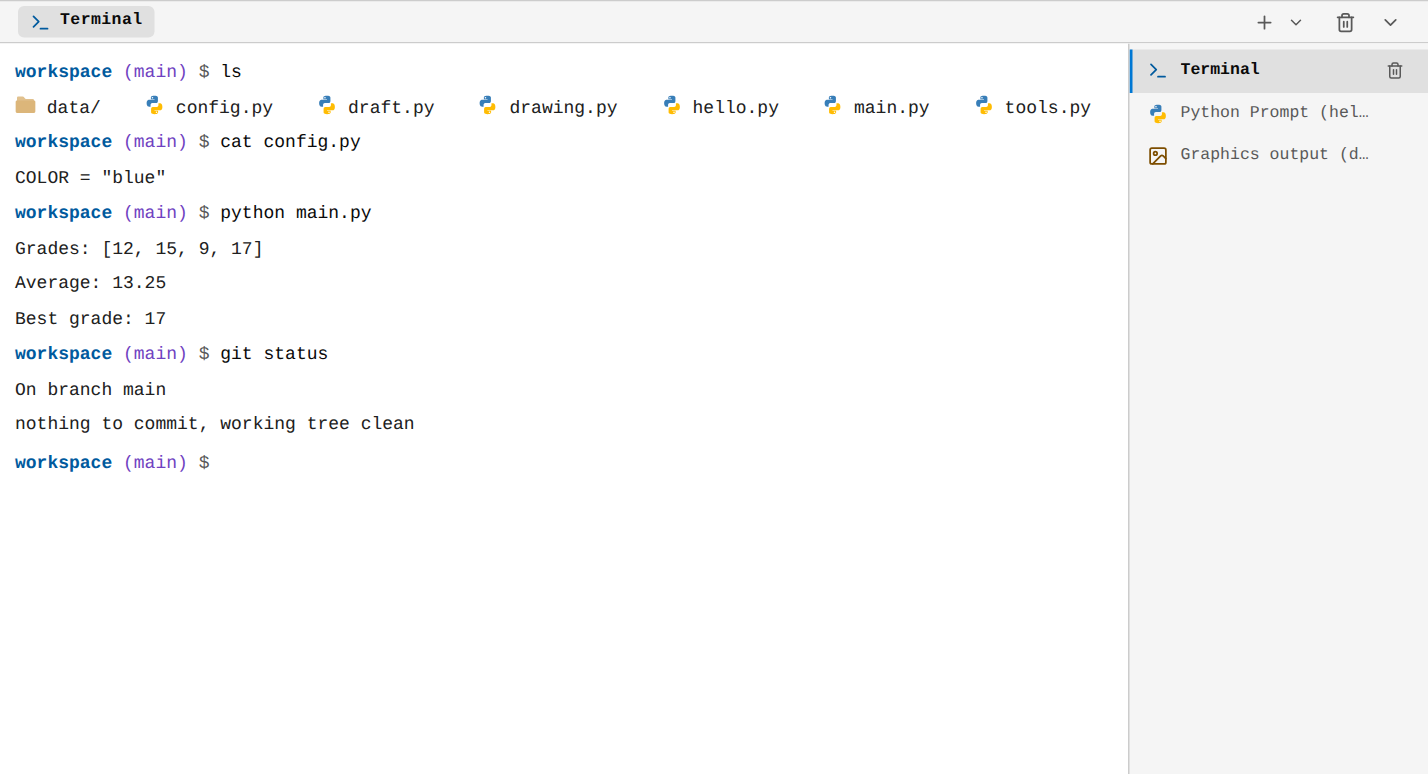
A terminal for learning
It is not a real shell (bash), but an emulator of the basic commands, with their usual syntax and messages. It acts on the files of your project, and only on them.
The basics
- The
workspace (main) $prompt shows the current folder (workspaceis the root of the project) and, in brackets, the Git branch. Enterruns the command.↑and↓bring back the previous commands.Tabcompletes the name of a command or a file: typecat tothenTab, and the terminal writescat tools.py.Ctrl+Cstops the running command (a Python program that does not end) or clears the line.helplists all the commands;clearclears the screen.- To leave the field with the keyboard:
Esc, thenTab.
The + button of the panel opens another terminal, with its own current folder and its own history.
Moving around and looking
| Command | Effect |
|---|---|
pwd | Shows the current folder |
ls, ls -la, ls -lh, ls -1 | Lists the files (-a: hidden files included, -l: in detail) |
cd folder, cd .., cd -, cd ~ | Changes folder (parent, previous, root of the project) |
tree, tree -a | Shows the tree |
cat file, cat -n file | Shows a file (-n: numbered lines) |
head -n 5 file, tail -n 5 file | First or last lines (10 by default) |
grep pattern files, grep -i -n … | Searches for text (-i: ignore case, -n: line numbers) |
wc file, wc -l, -w, -c | Counts lines, words, characters |
stat file | Size, type, modification date |
Creating, copying, moving, deleting
| Command | Effect |
|---|---|
touch notes.txt | Creates an empty file |
mkdir folder, mkdir -p a/b/c | Creates a folder (-p: with its parents) |
cp source destination, cp -r | Copies a file (-r: a folder) |
mv source destination | Moves or renames |
rm file, rm -r folder | Deletes (-r: a folder and its content) |
rmdir folder | Deletes an empty folder |
No trash can
rm deletes for good. If the file was saved in a commit, Git can bring it back (git restore file).
The explorer and the editor follow everything the terminal does: a new file appears in the tree right away.
Redirecting the output
| Syntax | Effect |
|---|---|
command > file | Writes what the command prints into the file (replacing it) |
command >> file | Appends it to the end of the file |
For example echo "# My project" > README.md, or python main.py > results.txt to keep the output of a program.
Python in the terminal
| Command | Effect |
|---|---|
python main.py | Runs a script, like a program started by a developer |
python main.py arg1 arg2 | With arguments, read by the program in sys.argv |
python -c "print(6 * 7)" | Runs one line of code |
python -m package | Runs a module or a package (__main__.py) |
python | Opens the interactive Python console of the panel |
python -V, python -h | Version, help |
pip install package, pip list | Installs a library, lists the installed ones |
Each python … starts a fresh interpreter, with the files of the project up to date, like a real program. Its drawings and charts appear in a Graphics output console. The current folder of the terminal is the program's: after cd data, open("grades.csv") finds the file.
Git in the terminal
git accepts the common commands: status, add, commit, log, diff, show, branch, switch, checkout, merge, restore, reset, tag, init. git --help lists them with their options. See Git.
Other commands
echo text, history, whoami, date, uname.