Writing code
The editor colors your code according to its language, numbers the lines and helps you write: completion, automatic closing of brackets and quotes, highlighting of the other occurrences of the selected word.
Tabs
Each open file has its tab. A dot ● means unsaved changes; Ctrl+S saves (File › Save menu, or Save All).
- Close a tab: its cross, or the
Deletekey when the tab has focus. Close All Editors (palette) closes them all. - Each tab keeps its own history:
Ctrl+Zstill undoes your changes after you visited another tab, as long as the tab stays open. - If an open file is changed elsewhere (terminal, Git) and you have not touched it, the editor shows the new version.
Two files side by side
The button to the right of the tabs (or Ctrl+\, View › Split Editor Right) splits the editor into two panes. Drag a tab from one pane to the other, or use the Move Editor to the Other Group command of the palette. The border between the panes moves with the mouse or the keyboard (arrow keys).
Editing
| Action | Shortcut | Menu |
|---|---|---|
| Undo, redo | Ctrl+Z, Ctrl+Y (or Ctrl+Shift+Z) | Edit |
| Cut, copy, paste | Ctrl+X, Ctrl+C, Ctrl+V | Edit |
| Comment or uncomment the selected lines | Ctrl+/ | Edit › Toggle Line Comment |
| Indent, unindent | Tab, Shift+Tab |
Find and replace
In the file: Ctrl+F opens the search bar above the code, Ctrl+H adds replacement. Three options: match case, whole word, regular expression. Enter goes to the next occurrence, Esc closes.
In the whole project: Ctrl+Shift+F opens the search in the side panel, Ctrl+Shift+H with replacement.
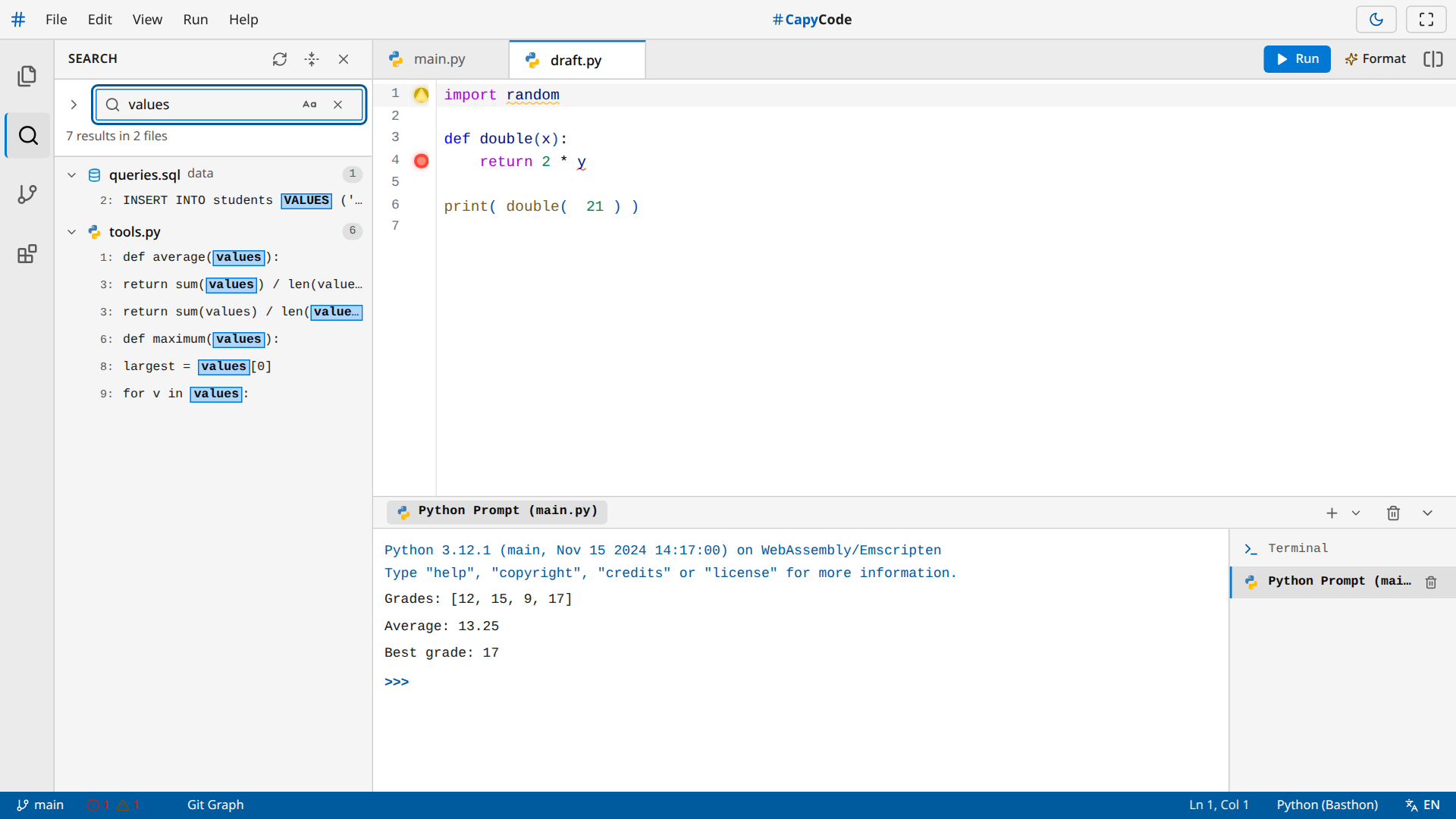
Results are grouped by file; a click opens the file at the right line. Replace All asks for confirmation and shows the number of occurrences and files. The search takes unsaved changes into account.
The command palette
Ctrl+Shift+P (or F1, View › Command Palette...) opens the palette: type a few letters to find any action of CapyCode, with its shortcut.
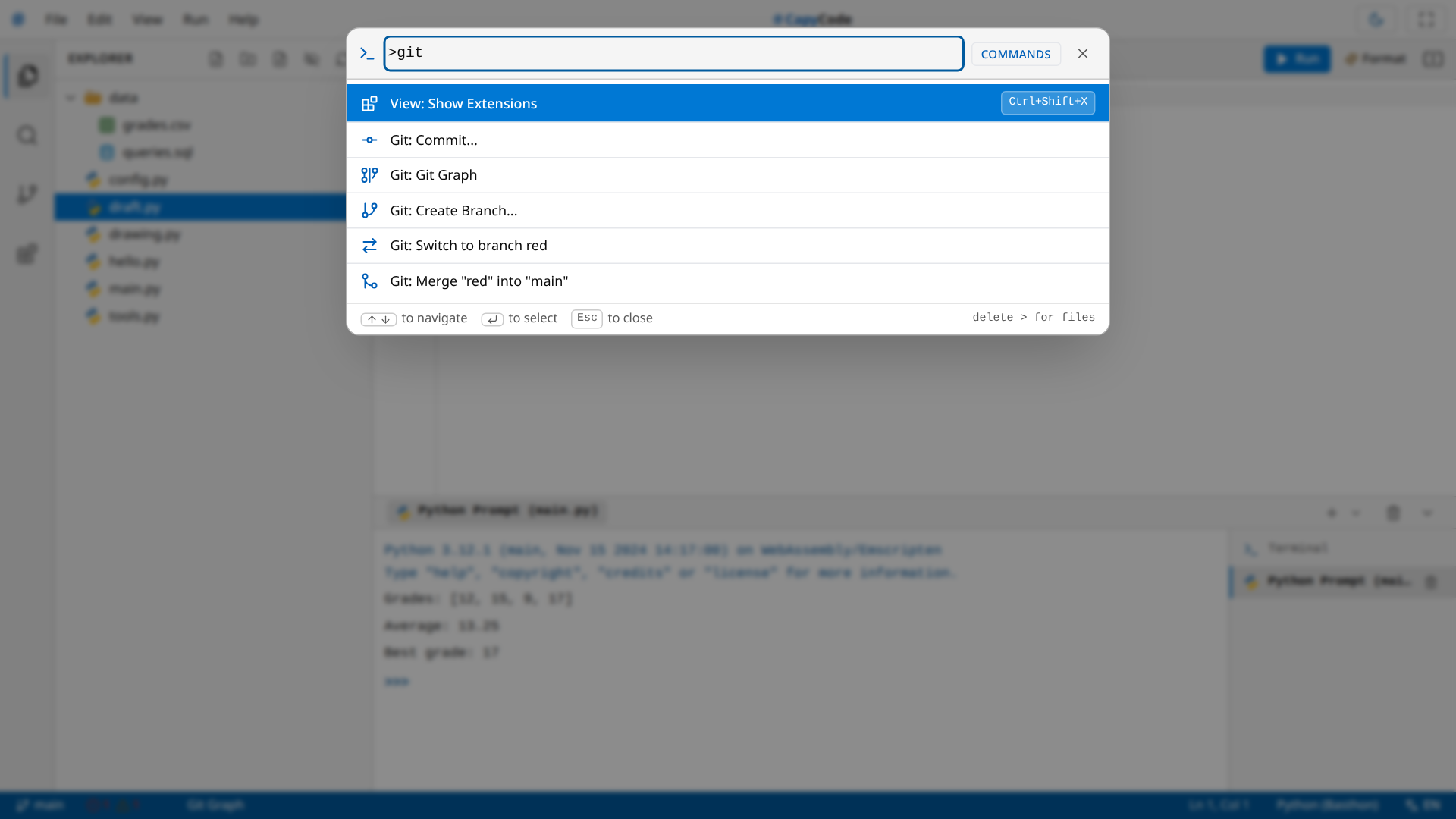
Without the leading >, the palette looks for a file by its name (that is Ctrl+P).
The outline of the file
The Outline icon of the activity bar (available once the Document Outline extension is enabled in the Extensions panel) lists the classes, functions and methods of the Python file on screen. A click takes you to their definition. You can filter, sort by name or by position, expand or collapse everything.
Mistakes spotted as you type
For Python, the Error Detection (Linter) extension — enabled by default — analyzes your code at every keystroke, without running it:
- an error (code that cannot work: syntax, a variable that is never defined) is underlined in red, with a red dot in the margin;
- a warning (code that works but probably hides a problem: useless import, variable never used) is underlined in yellow.
Hover over the underlined word: a tooltip explains the problem and gives a tip. Some errors offer an automatic fix button.
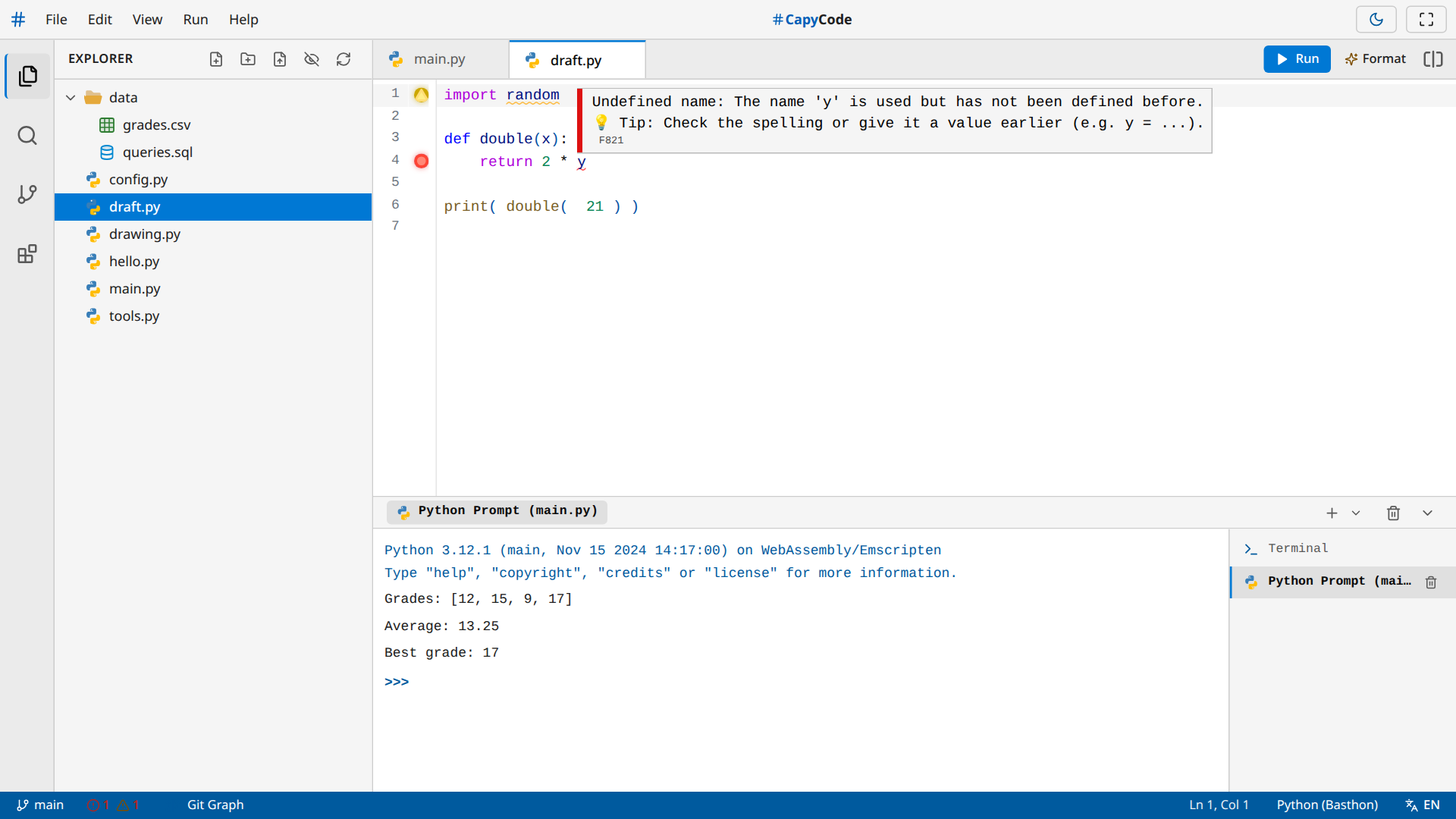
The status bar counts the errors and warnings of the file; a click on this counter takes you to the first problem. If the Linter extension is disabled in the Extensions panel, underlinings and the problem counter are hidden.
The code can still be wrong
The analysis spots mistakes of form. A program without any underlining can still give a wrong result: only running it, and your tests, will tell.
Formatting the code
When the Code Formatter extension is enabled in the Extensions panel, the Format button (or Shift+Alt+F, Run › Format Document) appears to rewrite the Python code according to community conventions (PEP 8): spaces around operators, blank lines between functions, quotes…
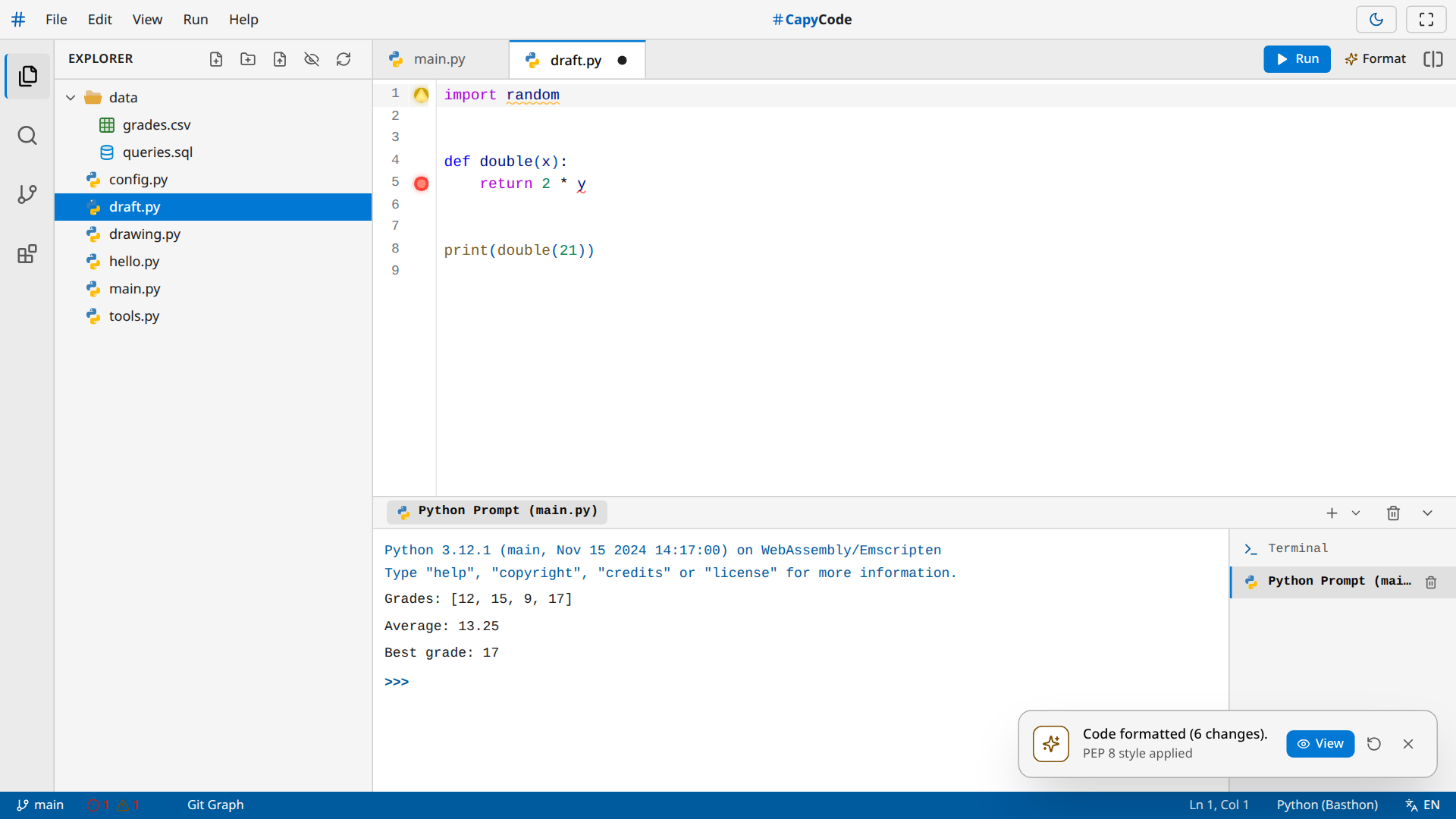
A notification announces the number of changes:
- View details each change, as a list or as a full comparison: a good way to learn the conventions;
- the circular arrow undoes the formatting.
Formatting does not change what the program does, only how it looks. It is available for Python only.