Files and folders
Your project is a folder that holds files and subfolders. The explorer, in the side panel, shows them as a tree.
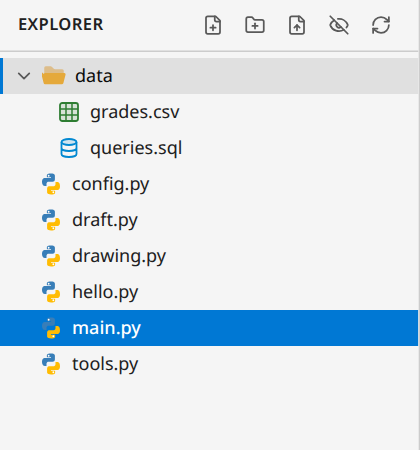
If the side panel shows something else (search, Git…), click the first icon of the activity bar, the one with the pages.
Opening a file
- One click on a file opens it in an editor tab.
- One click on a folder opens or closes it.
Ctrl+P(View › Go to File...): type part of the name, thenEnter. This is the fastest way once the project grows.
Images (.png, .jpg, .gif, .svg, .webp…) open in a viewer: zoom, actual size, fit to window, checkerboard, dark or light background, download.
Creating
The buttons at the top of the explorer create a new file or a new folder. Type the name, then Enter (Esc to cancel).
- The new item is created in the selected folder, otherwise at the root of the project. When you hover over a folder, its own buttons create items directly inside it.
- The extension matters: it tells CapyCode the language of the file.
.pyfor Python,.sqlfor SQL,.mlfor OCaml. - The same actions are in the File menu (New File..., New Folder...).
Renaming, moving, deleting
When you hover over a file or a folder, buttons appear on the right:
- Rename (or the
F2key when the item is selected); - Delete (or the
Deletekey): you are asked to confirm, and the deletion is permanent.
To move an item, drag it onto a folder. While dragging, a "Move to the project root" area appears at the bottom of the tree. With the keyboard, use the mv command of the terminal: mv draft.py archive/.
An open file follows its renaming or moving: its tab stays open.
Adding files from your computer
- The Import files into the project button of the explorer opens your computer's file picker.
- You can also drag files from your computer and drop them on the CapyCode window.
The files are added to the project; if a file with the same name already exists, CapyCode asks whether to replace it. A ZIP archive dropped on the window is handled differently: it replaces the whole project (see Saving and sharing).
Hidden files
Files and folders whose name starts with a dot (.git, .gitignore…) are hidden. The crossed-out eye button of the explorer (or View › Show Hidden Files) shows or hides them.
The .git folder holds the history of your project: don't touch it by hand, use Git.
The letters next to the files
If your project uses Git, a colored letter shows the state of each file since the last commit: U new file not tracked yet, M modified, A added, D deleted, C merge conflict. Hover over the letter for its explanation. See Git.