Running a program
CapyCode runs your code in your browser, thanks to Basthon: Python, SQL (SQLite) and OCaml. The language is chosen from the file extension: .py, .sql or .ml.
The Run button
Open the file to run, then click ▶ Run (or Ctrl+Enter, Run › Run Code menu). CapyCode:
- saves the file;
- starts a fresh interpreter, keeping nothing from previous runs;
- runs the program and shows its output in the console of the language, in the bottom panel ("Python Prompt (main.py)").
The very first start of Python takes a few seconds, the time to download the interpreter; the next ones are much faster.
After the run, the console stays open
When the program has finished, the console shows the >>> prompt: you can type Python there, with the variables and functions of your program. It is handy to check a value or try a function:
>>> grades
[12, 15, 9, 17]
>>> average([10, 20])
15.0
In the console: Enter runs the line, ↑ and ↓ bring back lines you already typed, Tab completes a name. A line that opens a block (def, for, if…) continues on the next lines (...); an empty line ends the block.
A program that asks a question
When the program calls input(), an input field appears in the console, below the question. Type your answer, then Enter.
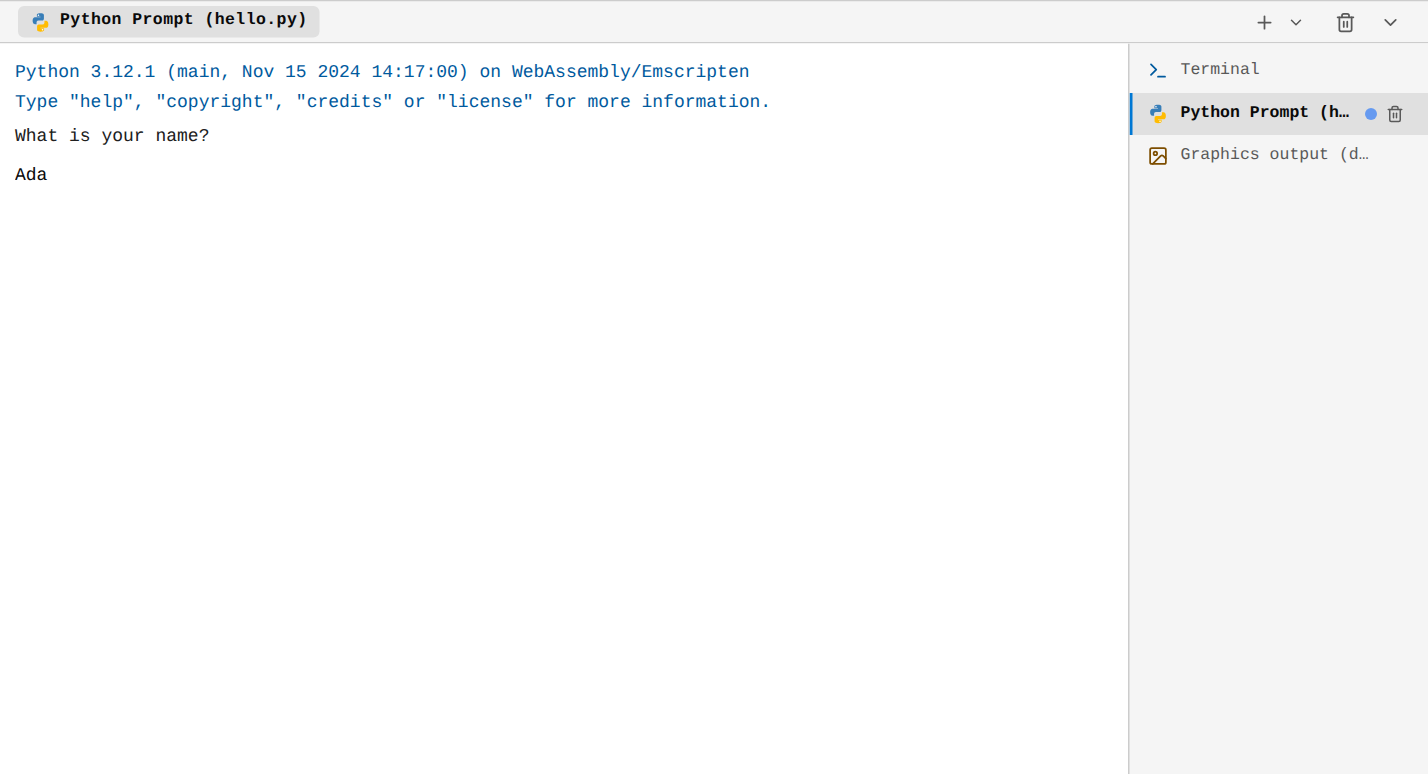
Ctrl+D in the field sends an end of input (as in a real terminal: input() then raises EOFError), Ctrl+C interrupts the program.
Stopping a program
A program that does not stop (an infinite loop, for example) is interrupted with Ctrl+C in its console. The interpreter is then restarted: the console shows KeyboardInterrupt. Closing the console (its trash can, in the list on the right of the panel) also stops its interpreter.
Errors
When the program crashes, Python shows a traceback: the lines called, from the start to the error, with the file name and the line number, then the type of the error and its message. Read it from the end: the last line says what happened, the one before says where.
Traceback (most recent call last):
  File "main.py", line 5, in <module>
    print("Average:", average(grades))
  File "tools.py", line 3, in average
    return sum(values) / len(values)
ZeroDivisionError: division by zero
In the list of consoles, a console whose program failed is marked with an icon ("Finished with errors").
Drawings and charts
Programs that draw (turtle) or plot curves (matplotlib) show their result in a Graphics output console, opened automatically.
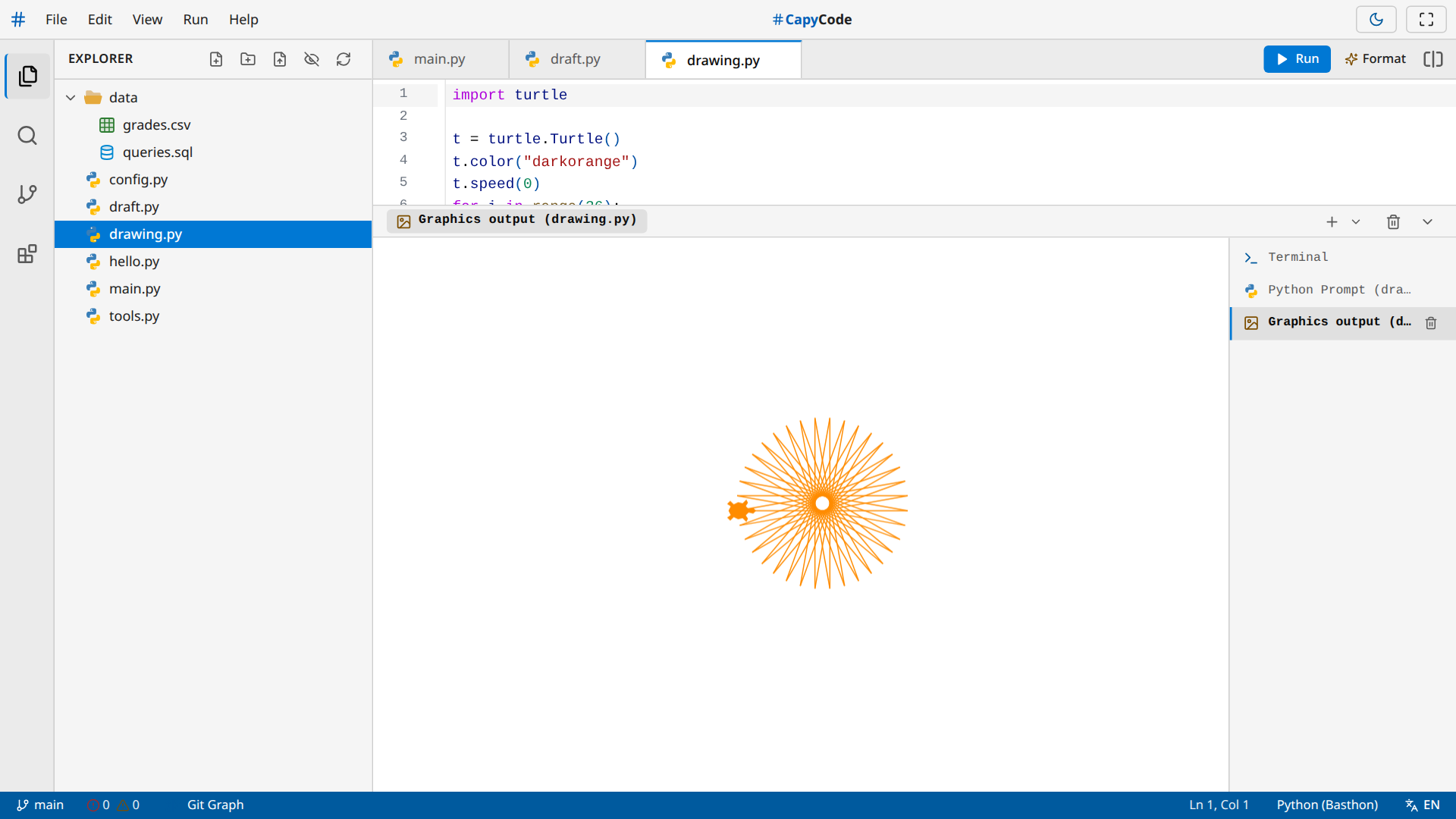
To see better, enlarge the bottom panel by dragging its top border (or with the arrow keys when this border has focus). tkinter windows are shown too.
A p5 program can also play sound and use the webcam (createCapture). CapyCode then asks you, each time, to allow access to the camera; the browser may ask you too the first time.
Several files, data
For Python, at each run, all the files of the project are copied into the program's environment:
- you can import your own modules:
from tools import averageloadstools.py; - you can read data files:
open("data/grades.csv"). Paths start from the root of the project.
Files written by a program are not kept
A program can create or change files, but only in its copy: they do not appear in the explorer and disappear at the next run. To keep a result, print it, or redirect the output to a file from the terminal (python main.py > results.txt).
Libraries
No need to install anything: an import of a known library (numpy, matplotlib, pandas, sympy…) downloads it automatically the first time. pip install also works from the terminal. These downloads need an Internet connection.
The consoles of the bottom panel
The bottom panel gathers several consoles, listed on its right. A click shows one.
| Console | Content |
|---|---|
| Terminal | The commands of the terminal; there can be several |
| Python, SQL, OCaml Prompt | One per language: the output of the Run button, then the interactive prompt |
| Graphics output | The drawings and charts of a program |
- The + button opens a new terminal; the arrow next to it also offers an interactive console for each language, without running a file.
- The trash can clears the console on screen; the one in the list closes it.
Ctrl+J(View › Bottom Panel) collapses or expands the panel. A double click on its border collapses it or restores its size.
SQL and OCaml
To run SQL or OCaml code, first enable the corresponding extension (SQL Support or OCaml Support) from the Extensions panel (Ctrl+Shift+X, blocks icon in the activity bar). This prevents downloading their interpreters needlessly if you only work with Python.
Once the extension is enabled:
- SQL: a
.sqlfile runs in a fresh SQLite database. The ▶ Run button appears and the result of the last query is shown as a table. After the run, the SQL console keeps the database: you can type more queries on the tables you created. - OCaml: a
.mlfile runs the same way; the console shows the result of the last expression and stays open.
For these two languages, the program does not see the other files of the project, and the analysis while typing and formatting are not available.